
Selling on Praxis via Droppery
4 min read · Updated 13 Oct 2026 · Source
Selling on Praxis via Droppery
Praxis is one of the largest DIY and home improvement retailers in the Netherlands, with a large and active online audience looking for tools, building materials, garden products, and DIY projects. Through Droppery, you can list your products on the Praxis marketplace automatically — without any complex technical setup on your end.
Watch our onboarding video to get a full overview of the process: Onboarding Praxis
Step 1 — Register as a selling partner on Praxis
Start by signing up as a selling partner via the official Praxis registration page: 👉 www.praxis.nl/word-een-verkooppartner
For a full overview of what selling on Praxis involves, you can also consult the Maxeda Marketplace Seller Pitch: 👉 Maxeda's Marketplace Seller Pitch
Step 2 — Create your Droppery account and connect your product database
Once your Praxis seller account is set up, create your Droppery account if you haven't done so already.
You will then connect your product database to Droppery — whether that's your Shopify store, WooCommerce, or any other system — via an API or ERP connection. This connection allows Droppery to pull in all your product information, stock levels, and pricing automatically.
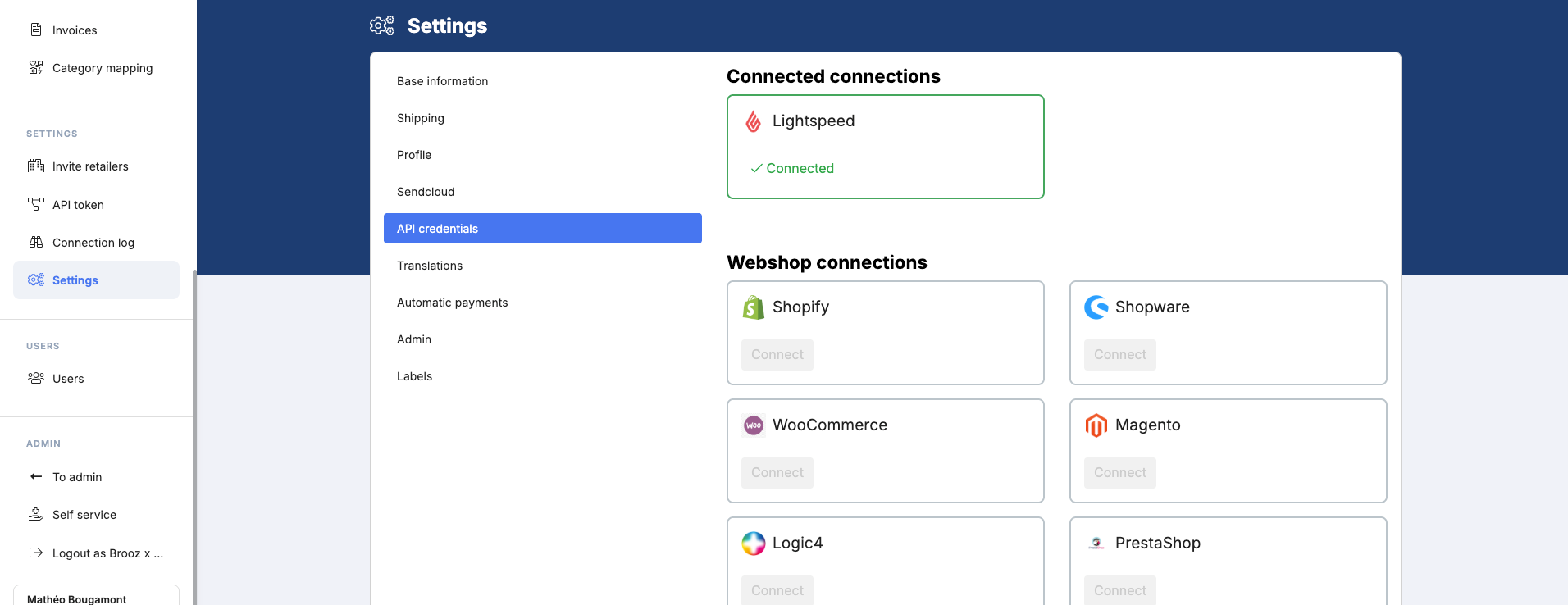
To get your API credentials and set up the connection, you can follow the different articles related.
Step 3 — Request your Marketplace API token
To push everything to Praxis, we need to connect with your account there.
Could you please go through the following steps so we can set this up?
What we need from you:
- Mirakl Shop ID
- API Key
How to retrieve the API key:
- Log in to your Mirakl account using your Master Account credentials.
- Only the Master Account has sufficient permissions to generate the API key.
- Access your user settings:
- Click your username or email address in the top-right corner of the dashboard.
- Select “My User Settings” from the dropdown menu.
- Navigate to the API Key section:
- Within “My User Settings”, open the “API Key” tab.
- Generate or retrieve your API key:
- If an API key is already available, you can copy it directly.
- If the field is empty, click “Generate a new key”. A new API key will appear in the following format: xxxxxxxx-xxxx-xxxx-xxxx-xxxxxxxxxxxx
- Copy the API key:
- Click “Copy to clipboard” to copy the API key.
Once we receive the Shop ID and API key, we can complete the connection from our side.
Step 4 — Format your product data correctly
Before your products can go live on Praxis, your data must meet the Praxis content requirements. This is your responsibility as a supplier — make sure everything is in order before importing.
Here is what you need to check and prepare:
- Your listings must comply with the Praxis content guidelines — products that do not meet these requirements will be rejected
- Product descriptions must contain HTML formatting — refer to the linked guide if you're unsure what this means
- All required content and attribute fields must be filled in completely
- Only products with valid data according to Praxis guidelines will be approved
- Understand the difference between master data and source data
- Understand the difference between a Brick category and a Web category
- Once your products are validated, add your offers and make sure they comply with the Praxis pricing policy
Step 5 — Import your products into Droppery and push to Praxis
Once your product data is ready and your connections are in place, import your products into Droppery via your API connection. Your product information will come in automatically with all the relevant details.
From there, pushing your products to Praxis takes just a couple of clicks — select the Praxis channel in Droppery and push. Your products, stock levels, and pricing are transmitted to the marketplace automatically.
Once live, stock is synchronised in real time and orders placed on Praxis are automatically transmitted to you for fulfillment — just like any other Droppery order.
You can monitor the status of your products at any time in Droppery.
Need help at any step? Reach out to us at info@droppery.io — we're happy to guide you through the process.
Was this article helpful?
Found a bug or issue while following this article?