
Selling on Loods 5 via Droppery
4 min read · Updated 27 Oct 2026 · Source
Selling on Loods 5 via Droppery
Loods 5 is one of the most well-known home furnishing and interior destinations in the Netherlands, with a strong brand and a loyal customer base across both physical and online channels. Through Droppery, you can list your products on the Loods 5 marketplace automatically — without any complex technical setup on your end.
Watch our onboarding video to get a full overview of the process: Onboarding Loods 5
Step 1 — Register as a selling partner on Loods 5
Start by signing up as a selling partner for Loods 5
Already a Loods 5 seller? Great, we can connect you right away.
Not a seller yet but want to be? Contact info@droppery.io.
Step 2 — Create your Droppery account and connect your product database
Once your Loods 5 seller account is set up, create your Droppery account if you haven't done so already.
You will then connect your product database to Droppery — whether that's your Shopify store, WooCommerce, or any other system — via an API or ERP connection. This connection allows Droppery to pull in all your product information, stock levels, and pricing automatically.
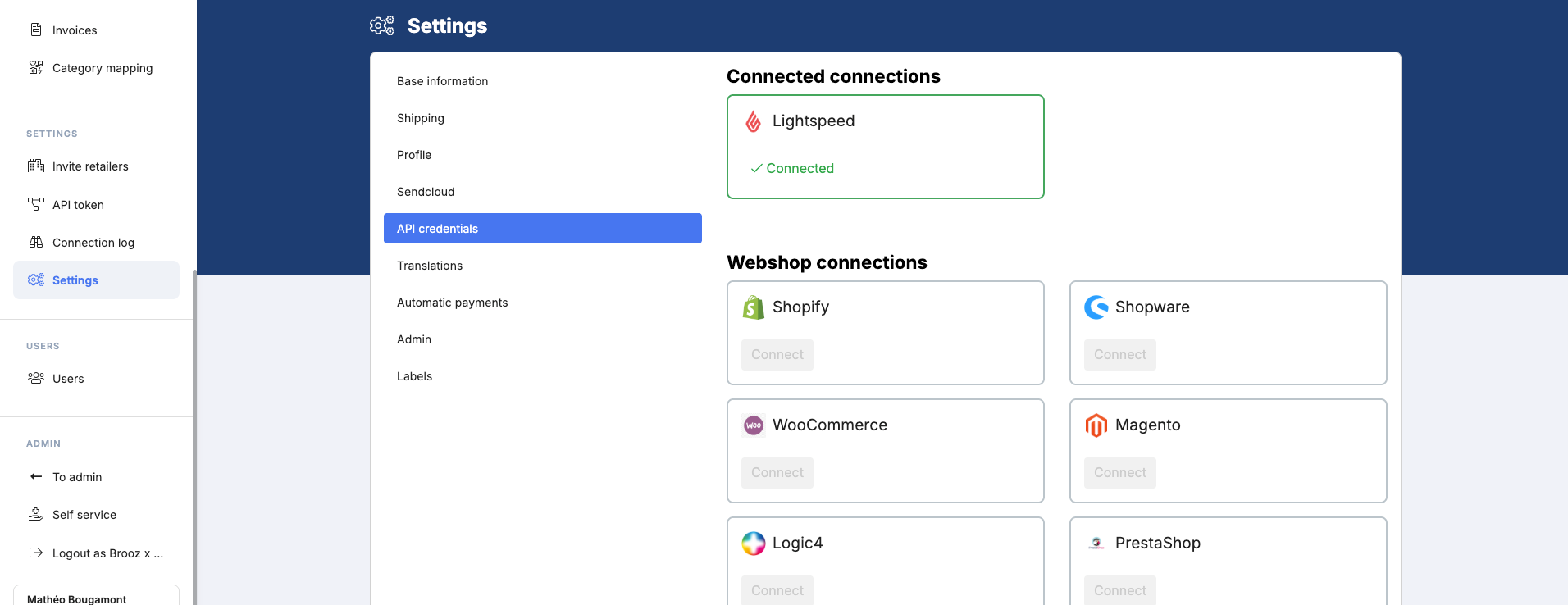
To get your API credentials and set up the connection, you can follow the different articles related.
Step 3 — Request your Marketplace API token
To enable the Loods 5 channel in Droppery, you will also need a Marketplace API token.
Please request your API token via info@droppery.io.
Please share the token with Loods 5
Step 4 — Format your product data correctly
Before your products can go live on Loods 5, your data must meet the Loods 5 content requirements. This is your responsibility as a supplier — make sure everything is in order before importing.
Download the mandatory attributes list
Download the data instructions
Step 5 — Import and prepare your products in Droppery
Before pushing your products to Loods 5, you need to import them into Droppery and make sure they meet the marketplace guidelines.
Import your products
Go to the Products section in Droppery, click on Actions, and select "Import products and append new data".
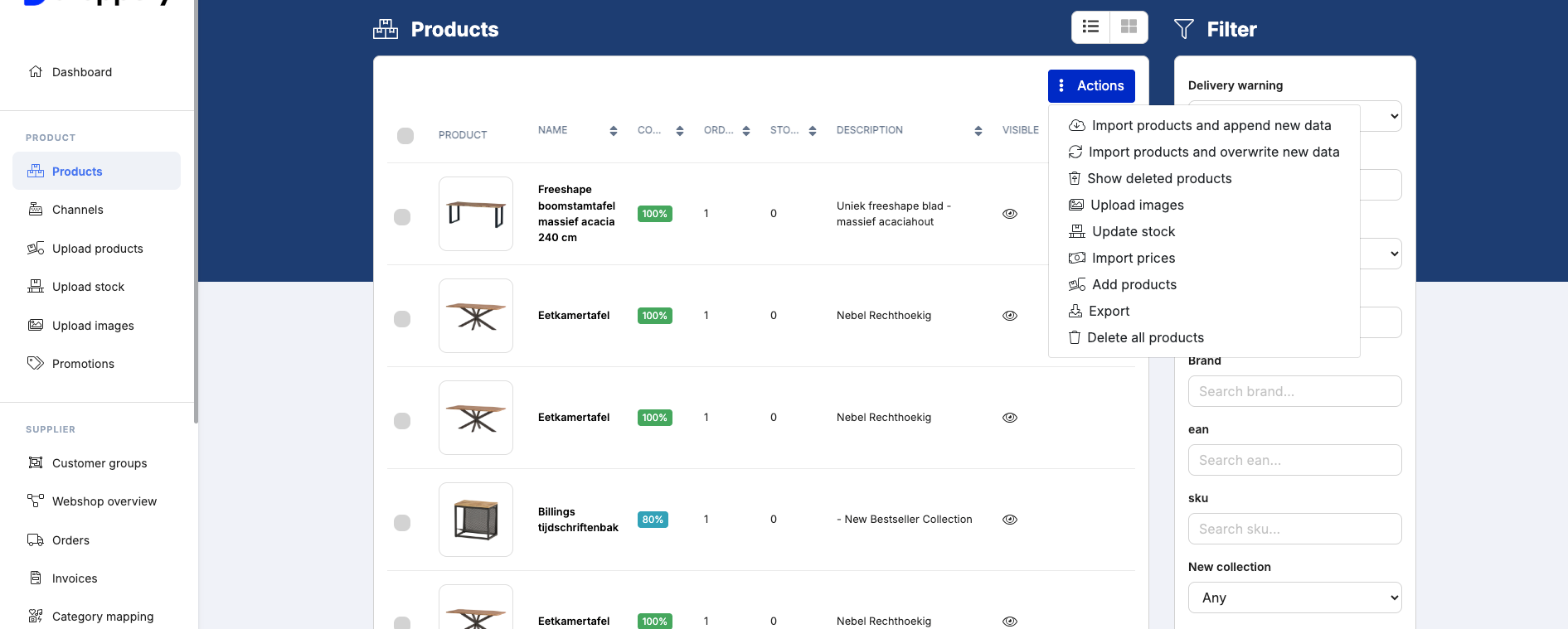
**Important: **Make sure you select this specific option — it ensures that all essential data such as stock levels, SKUs, and other key product information is correctly synchronised between your webshop and Droppery.
Once completed, all your products will be available in Droppery.
Update your product information
Before submitting your products to the Loods 5 channel, make sure your product data complies with the Loods 5 content guidelines. You can update your product information in two ways:
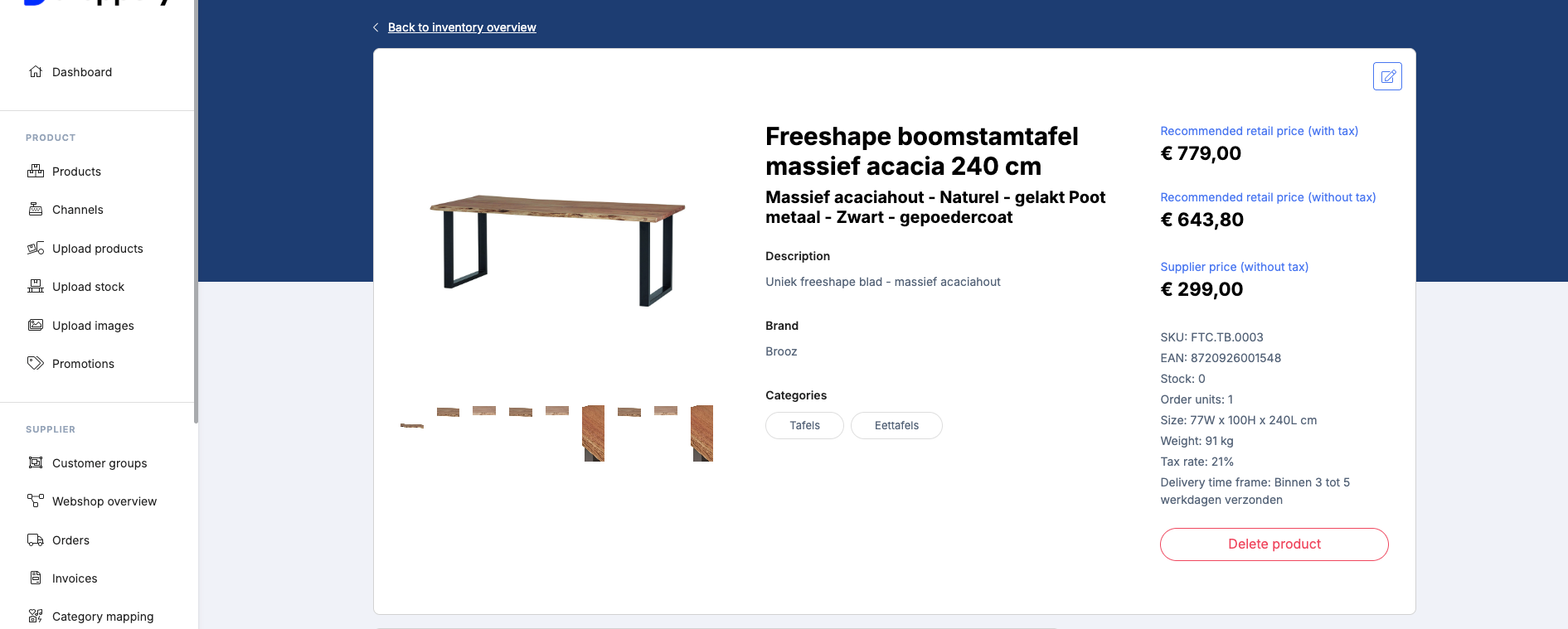
- Per product — click on a product and then click the pencil icon to edit it individually
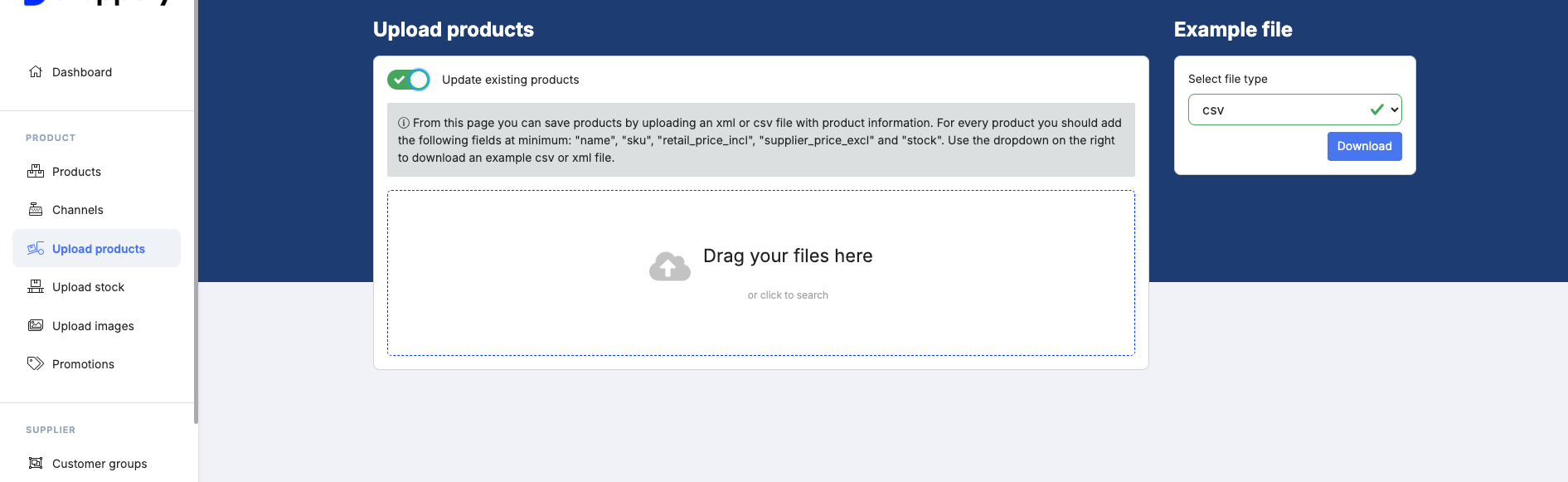
- In bulk — click on "Upload product" and select "Update product". Download the CSV example file to use as a template, fill in your updated information following the correct format, and upload your file back into Droppery. Your product data will be updated automatically.
Submit your products to the Loods 5 channel
Once your products are imported, synchronised, and compliant with the marketplace guidelines, you can select the products you want to push to Loods 5. Click the grey checkbox next to each product you want to submit, then click "Submit to channel".
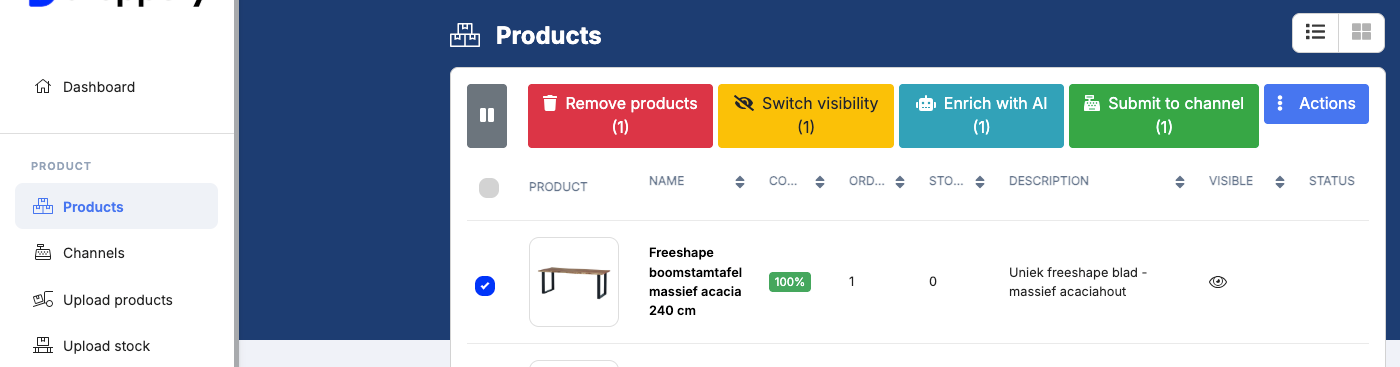
Your submitted products will then appear in your ShopManager account. You can also find them at any time in the Channels section of your Droppery account.
Step 6 — Map your attributes in ShopManager
Before your products can be correctly transmitted to Loods 5, you need to map your product attributes in ShopManager. This step is your responsibility and must be completed before pushing your products to the marketplace.
Here is how to do it:
- Log in to ShopManager
- Go to CRM → Participants
- Click on your account
- Open the "Droppery" tab
- Open the "Attribute mapping" tab
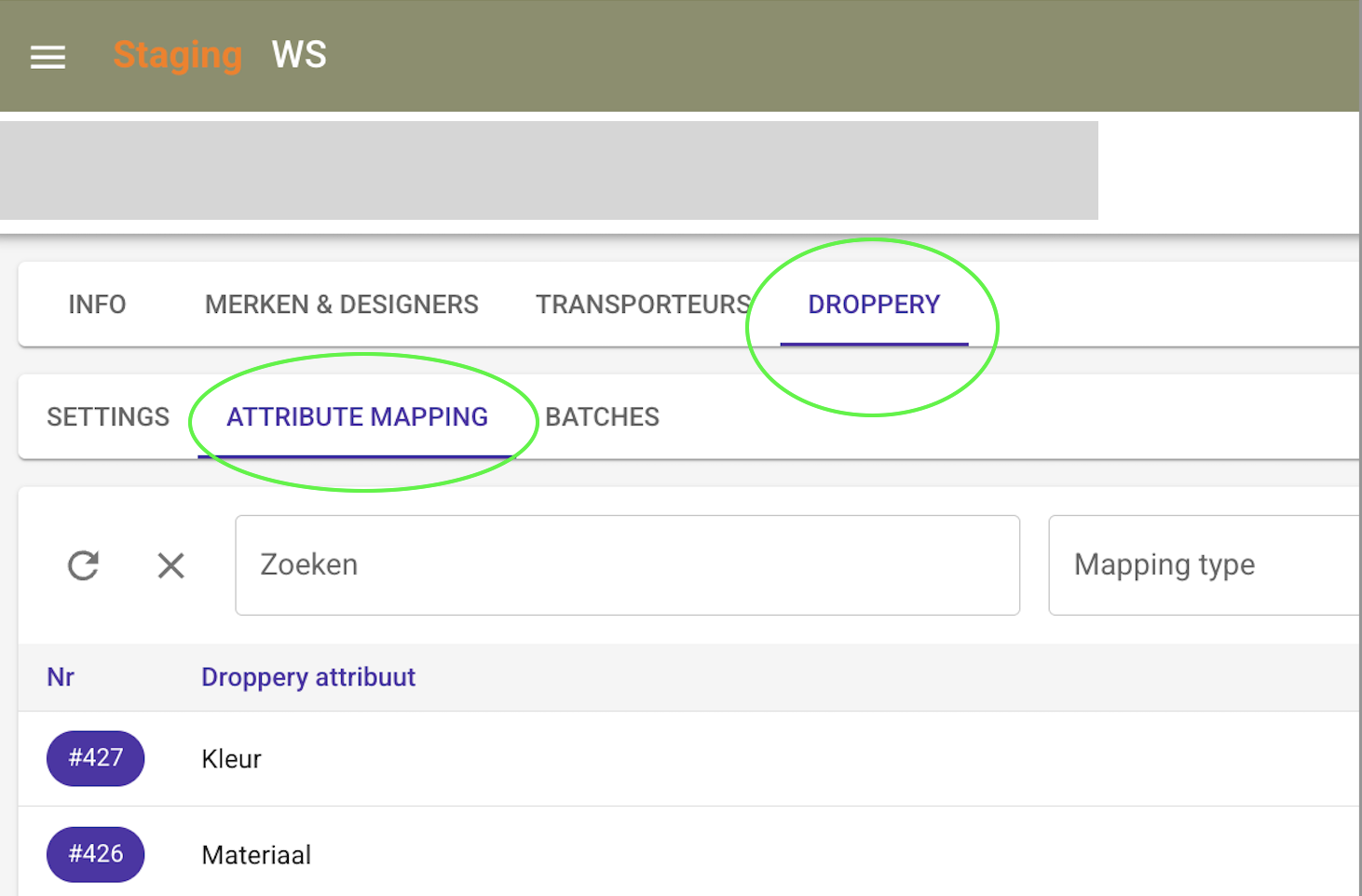
- Map each of your product attributes to the correct Loods 5 category
- Once all attributes are mapped, make sure to enable the " Mapping active" toggle to save your settings correctly
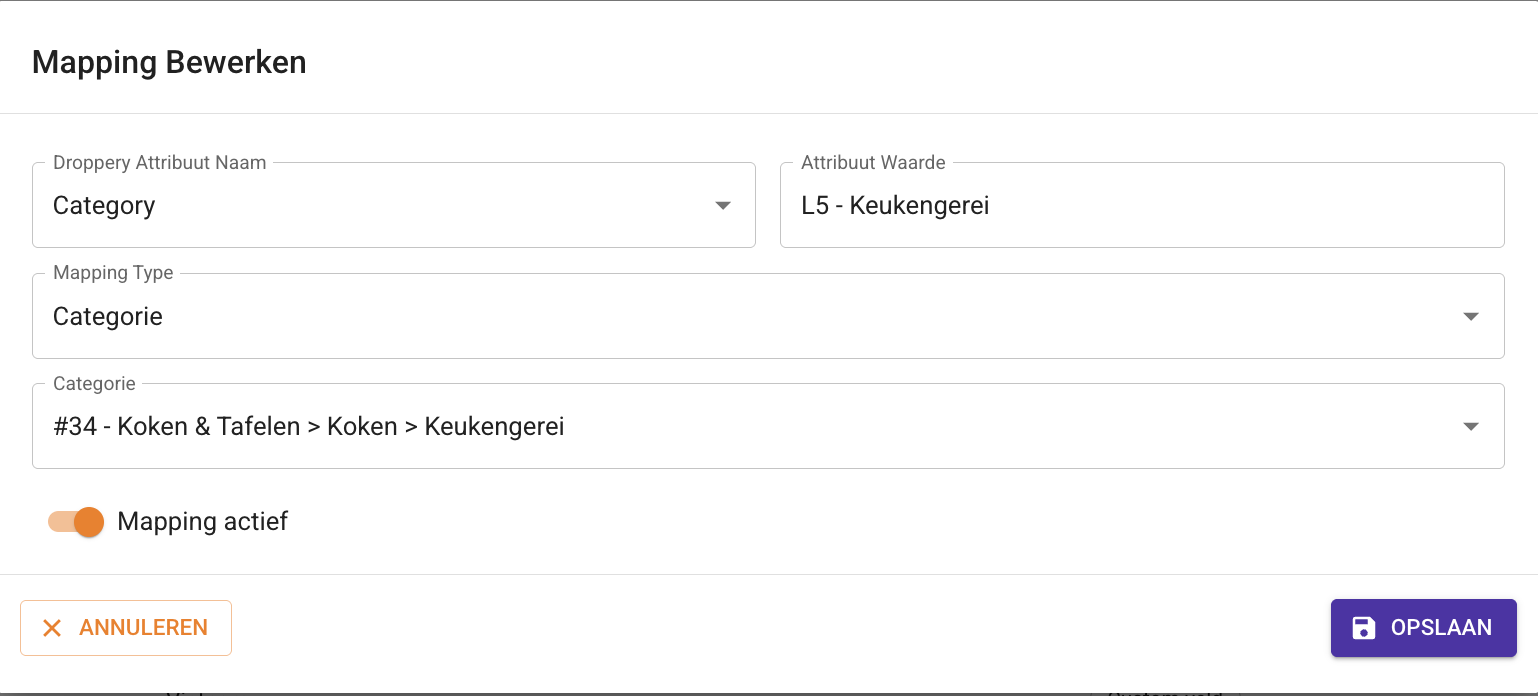
Please note: If a category is not correctly mapped, it will automatically be assigned to the "Overig" (Other) category instead of the correct one. Always check your mapping carefully before proceeding to the next step.
Step 7 — Import your products into Droppery and push to Loods 5
Once your product data is ready, your connections are in place, and your attribute mapping is complete, import your products into Droppery via your API connection. Your product information will come in automatically with all the relevant details.
From there, pushing your products to Loods 5 takes just a couple of clicks — select the Loods 5 channel in Droppery and push. Your products, stock levels, and pricing are transmitted to the marketplace automatically.
Once live, stock is synchronised in real time and orders placed on Loods 5 are automatically transmitted to you for fulfillment — just like any other Droppery order.
You can monitor the status of your products at any time in Droppery.
Need help at any step? Reach out to us at info@droppery.io — we're happy to guide you through the process.
Was this article helpful?
Found a bug or issue while following this article?